Set up Apple Pay with Shortcuts
How to make every Apple Pay payment appear in GroceryX on its own: a Shortcuts automation on iPhone.
iPhone with iOS 17.0+ only
Track Apple Pay purchases automatically
With the Shortcuts app, GroceryX can log a purchase every time you pay with Apple Pay. Setup takes about two minutes.
- 1.
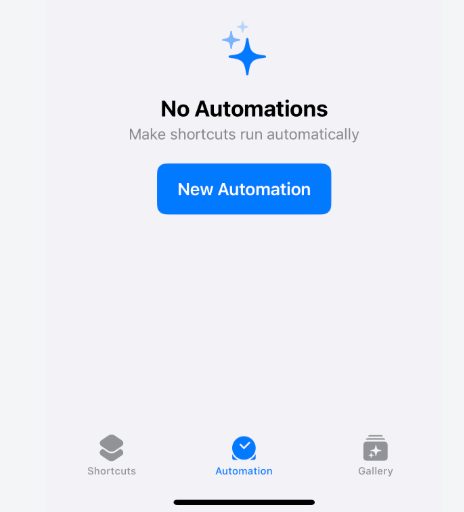
Open the Shortcuts app, go to the Automation tab and tap New Automation.
- 2.
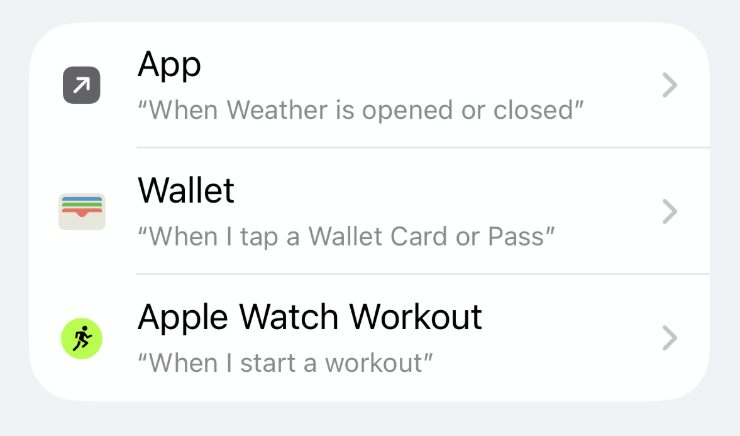
Choose the Wallet trigger: “When I tap a Wallet Card or Pass”. Select the cards you pay with.
- 3.
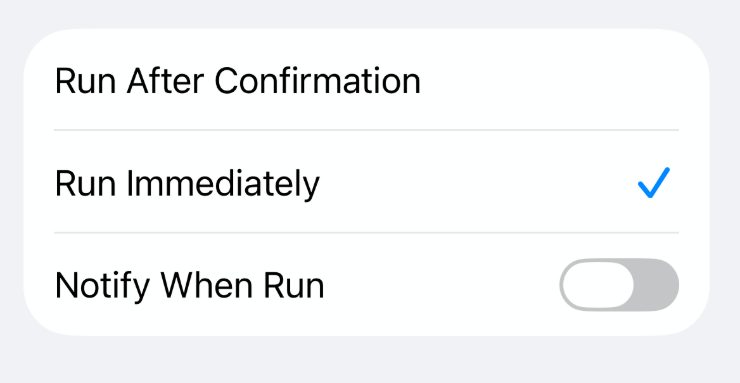
Select Run Immediately, then tap Next in the top right.
- 4.
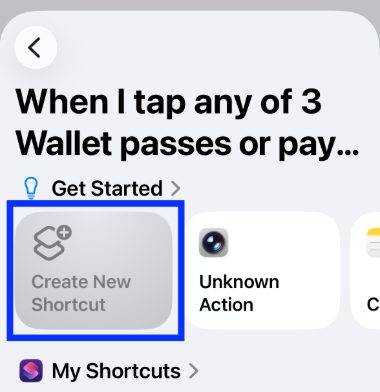
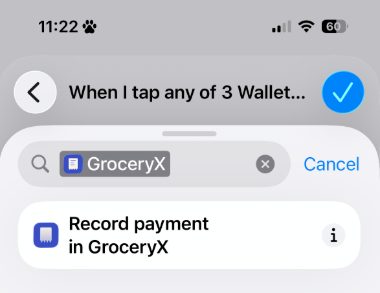
Tap Create New Shortcut. Search for “GroceryX” and pick the “Record payment in GroceryX” action.
- 5.
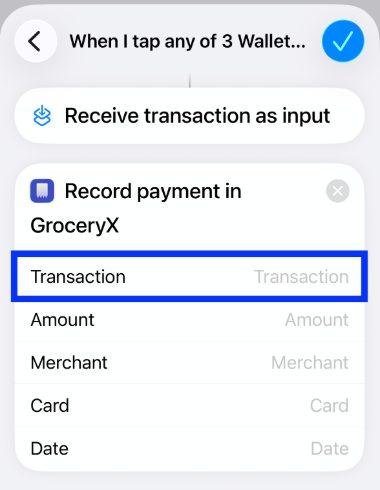
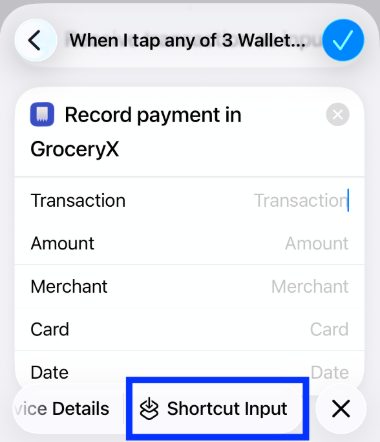
Tap the “Transaction” field. In the Select Variable row, swipe left and choose Shortcut Input.
- 6.
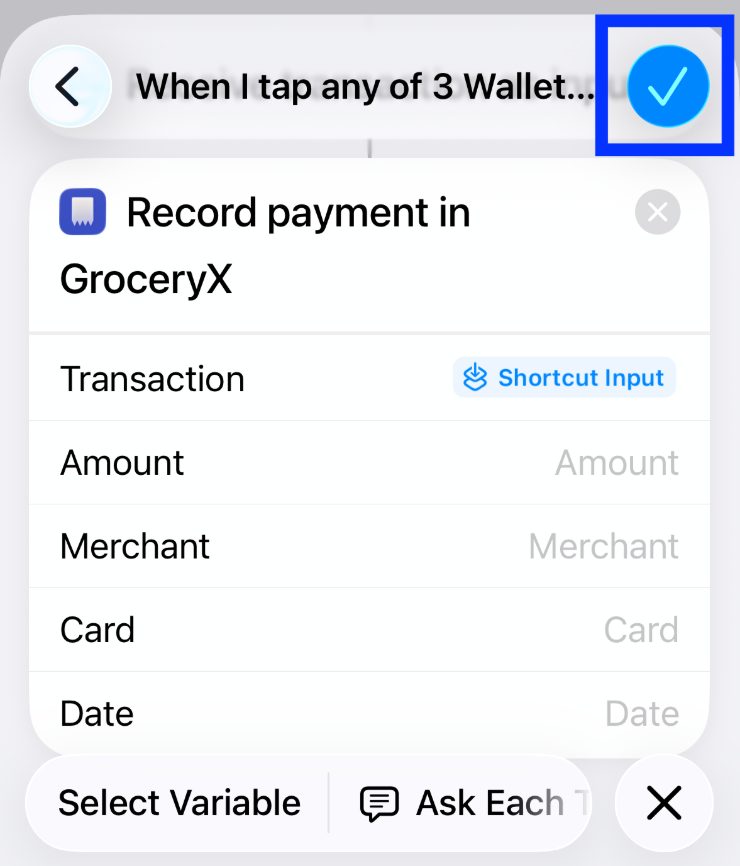
Click Done
Done. Every contactless Apple Pay payment now appears in GroceryX as a purchase.
Tips
- Unlock your phone before paying so the automation can run.
- Using several cards? Create one automation per card.
- Online payments and some terminals don’t trigger the automation. Scan the receipt instead.
Track Apple Pay purchases automatically
With the Shortcuts app, GroceryX can log a purchase every time you pay with Apple Pay. Setup takes about two minutes.
To add the Apple Pay integration, tap the button.
After you tap, iOS will ask you to confirm adding the new shortcut. Confirm it.
Then check that everything matches the picture. Automation must be turned on. To test, tap the Play button.
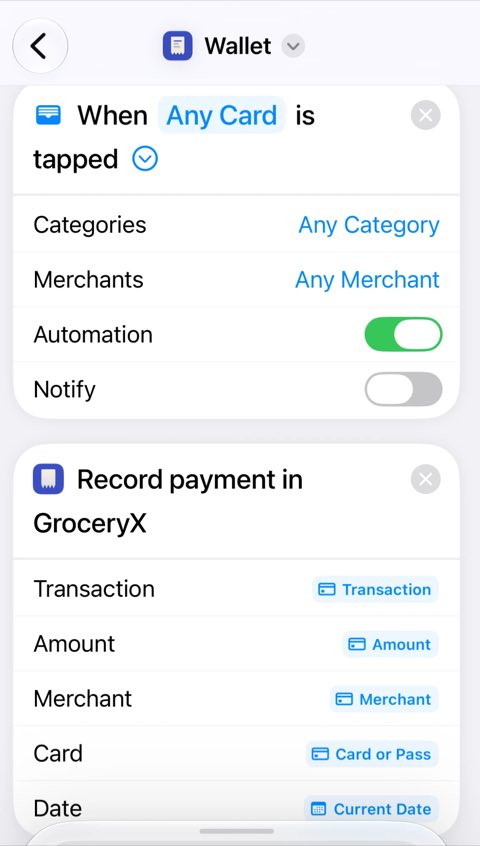
Done. Every contactless Apple Pay payment now appears in GroceryX as a purchase.
Tips
- Unlock your phone before paying so the automation can run.
- Online payments and some terminals don’t trigger the automation. Scan the receipt instead.